Features

Everything you'd expect from a mailbox. Nothing anyone else can read.

Confidesk is mail, files, notes, a password vault and private chat in one place — all encrypted in your browser before a single byte reaches us. This page walks through what's inside, with the real app on screen.

  • Encrypted on your device
  • No tracking pixels
  • No back door, no reset
  • Hosted in Switzerland
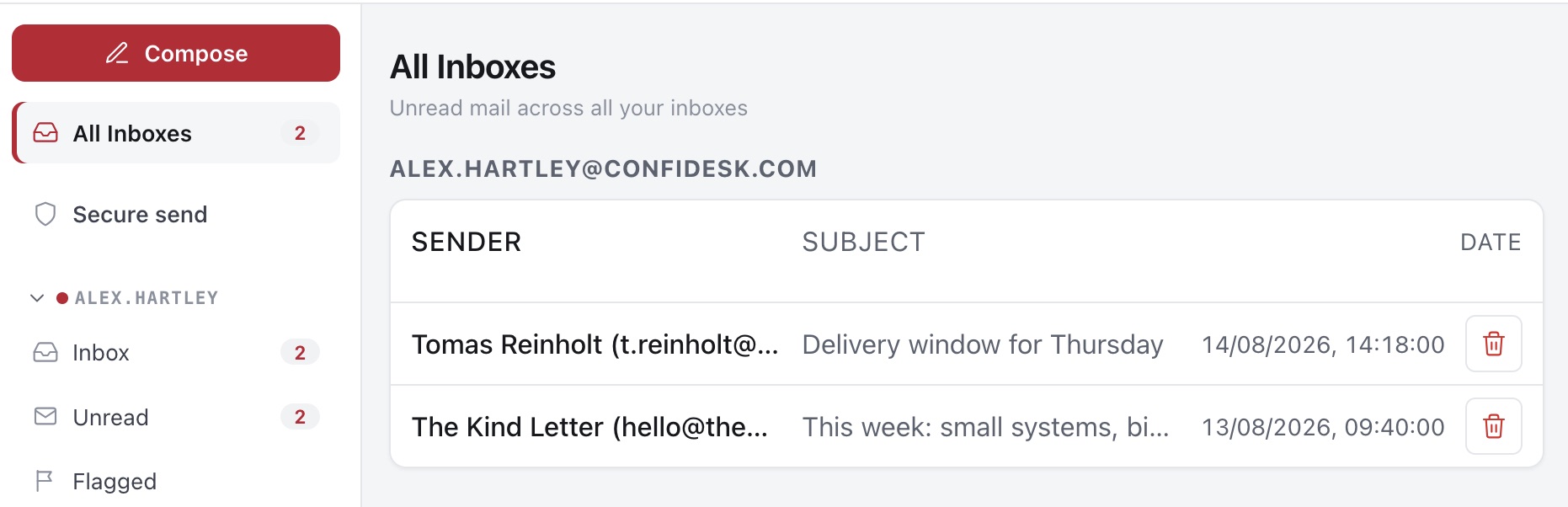
Confidesk — All Inboxesend-to-end encrypted
Confidesk All Inboxes view listing unread mail grouped by mailbox
Encrypted mailbox

Mail that arrives sealed — and stays that way.

Every message is encrypted to your key the moment it lands. Mail between Confidesk users never leaves the encrypted store; mail to the outside world is delivered normally. Organise it into your own folders, flag it in five colours, and see what's new across every inbox from one page.

  • All Inboxes — unread mail from every mailbox in one list; open a message or clear it without opening.
  • Folders, flags and drafts — your own folders, five coloured flags with a Flagged view, and drafts that save automatically and stay in sync with the desktop app.
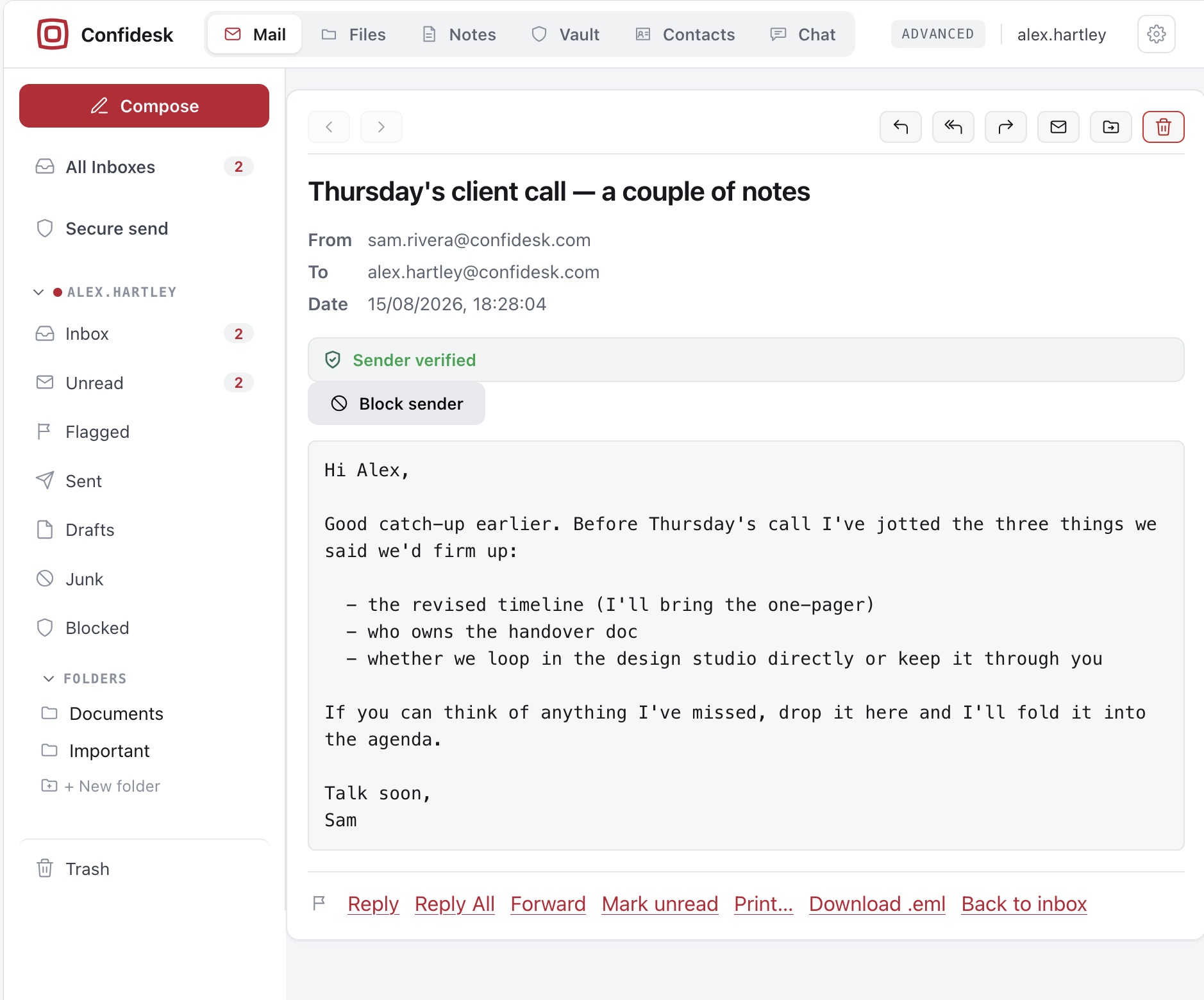
  • Sender verified — signatures from other Confidesk users and PGP contacts are checked and shown on the message.
  • Junk and Blocked folders — automatic spam filtering plus your own encrypted block list.
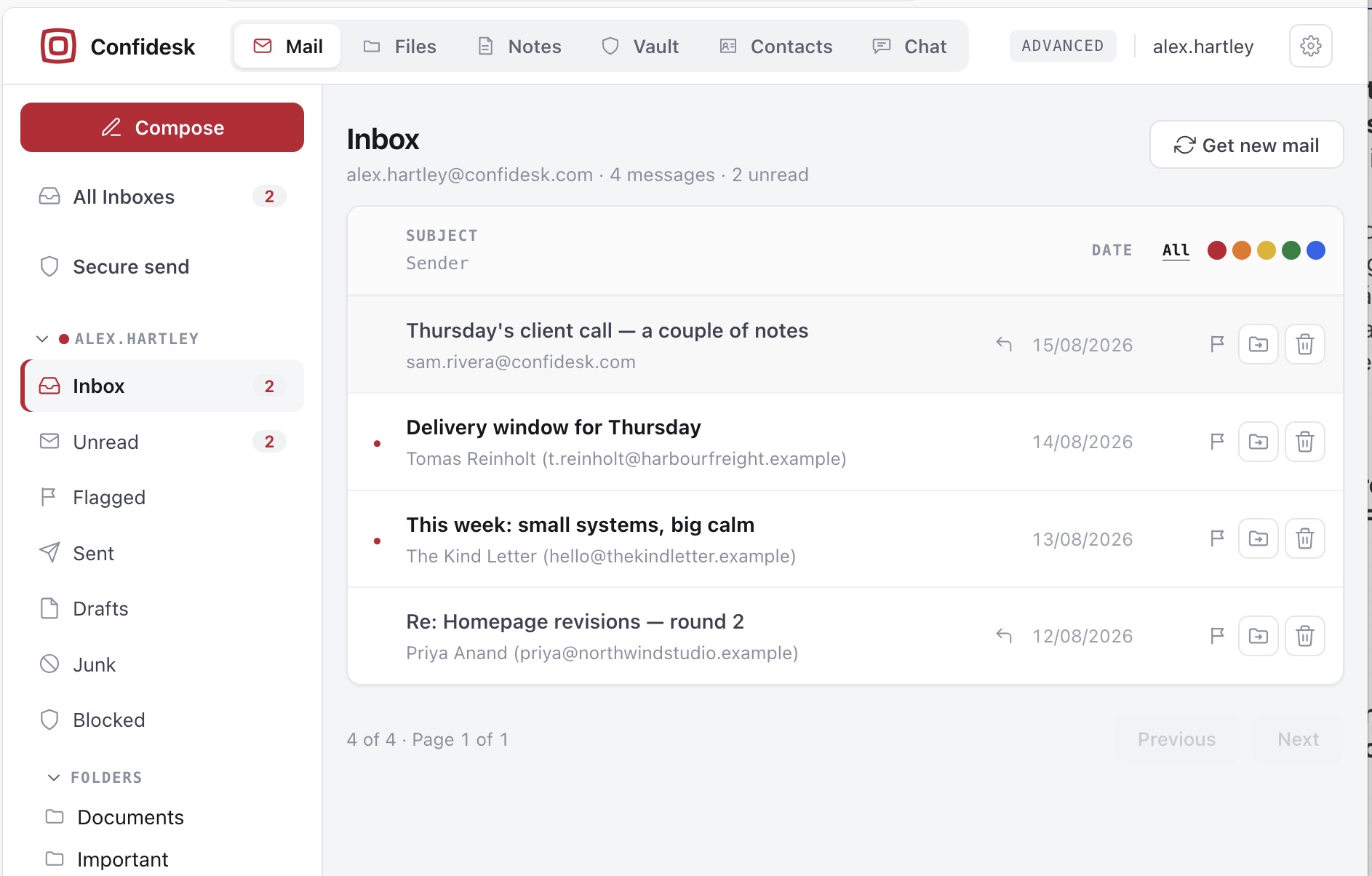
Inbox
Confidesk inbox with four messages, unread dots, and flag, move and delete actions per row
Reading mail

Plain text first. Nothing loads, nothing tracks you.

Messages open as plain text by default, so a tracking pixel can't tell the sender whether or when you read it, and no hidden code can run. When there's a formatted version, "Open full message" shows it in a sealed sandbox — remote images stay blocked until you say otherwise. Pro and Advanced accounts can choose to open the formatted view directly.

  • Download .eml — the complete original message is always yours to take elsewhere. No lock-in.
  • Block sender right from the message — one address or the whole domain.
  • Reply, Reply all, Forward, Move — with the previous/next controls to move through the folder.
MessageSender verified
An open message in Confidesk showing the Sender verified badge, Block sender button, plain-text body and Download .eml link
Writing mail

Plain or rich text. Attach straight from your encrypted storage.

The composer starts in plain text; flip the Rich text toggle for headings, lists, links, colours, alignment and more. Rich messages always carry a plain-text version too, so every recipient can read them. A "key on file" badge tells you when a recipient's public key is known — that message will be encrypted end to end.

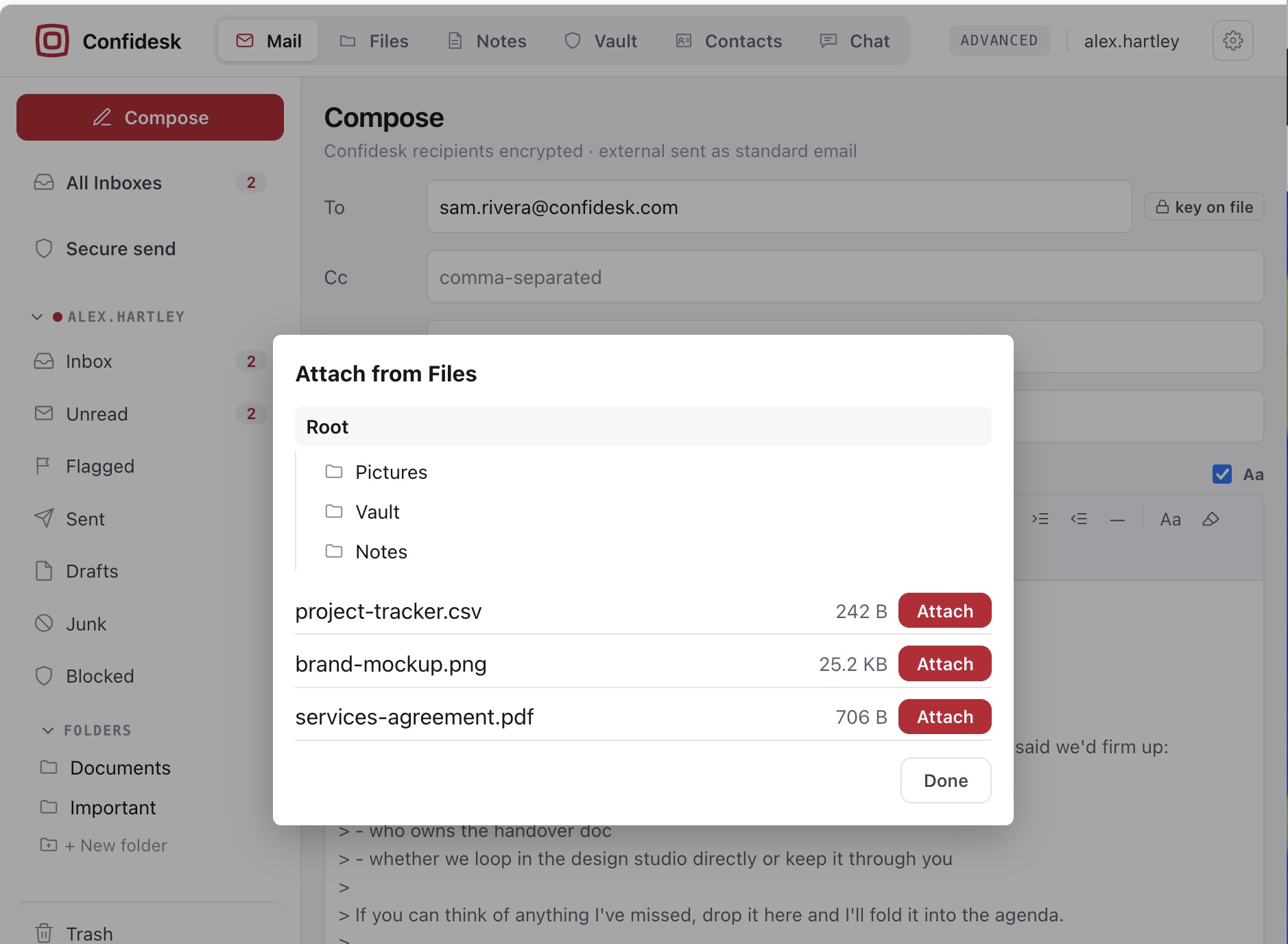
  • Attach from Files — pick anything from your encrypted storage, including your Notes; it's decrypted on your device and protected like any attachment.
  • Save draft or just close the window — nothing is lost, and drafts are encrypted like everything else.
  • Save new recipients to Contacts with one click after sending.
Compose — rich textkey on file
Confidesk compose window with the Rich text toolbar enabled and a bulleted list in the message
Attach from Files
The Attach from Files dialog listing folders and files from encrypted storage with Attach buttons
C-Board

Private chats with the same guarantee as your mail.

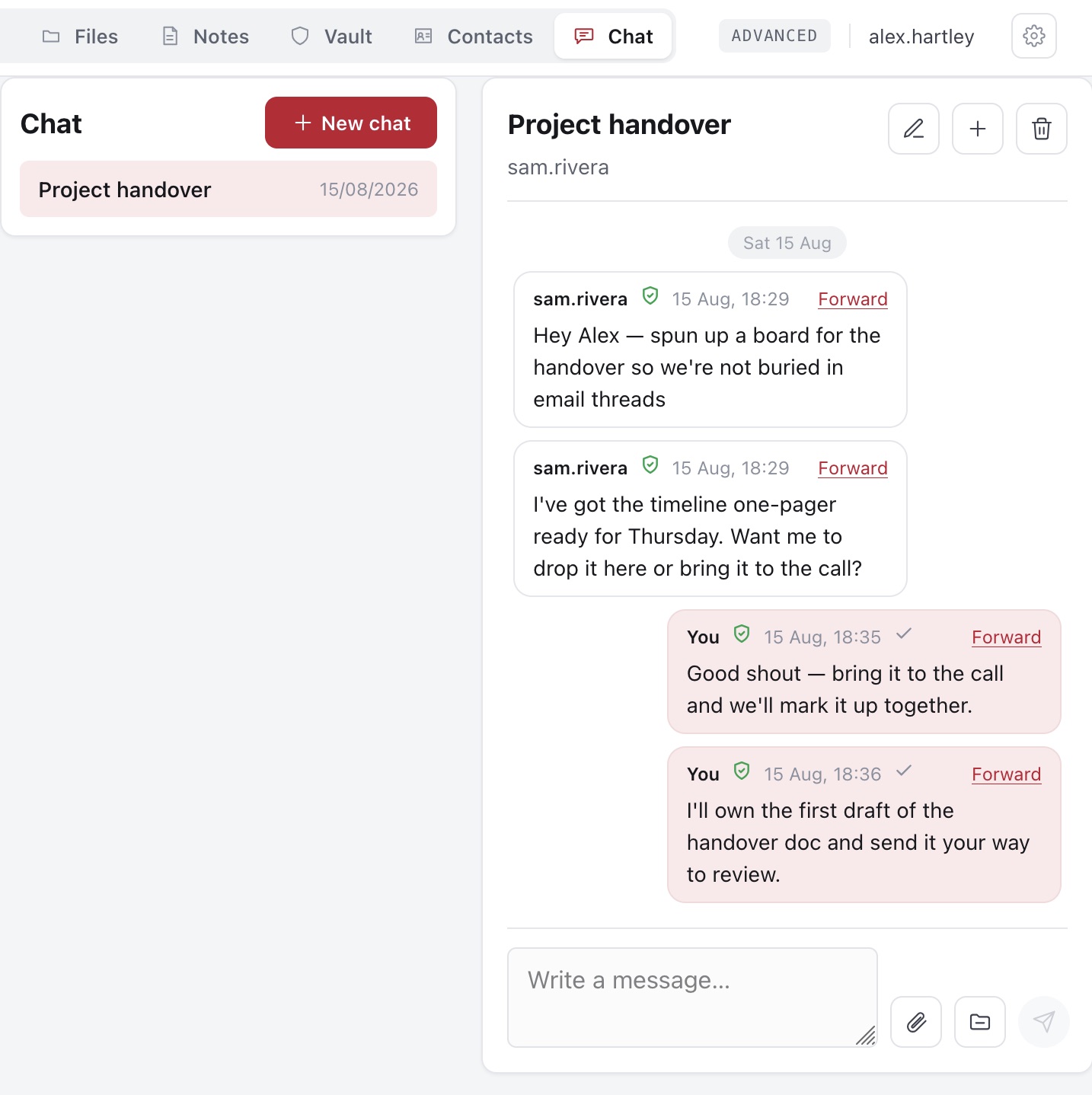
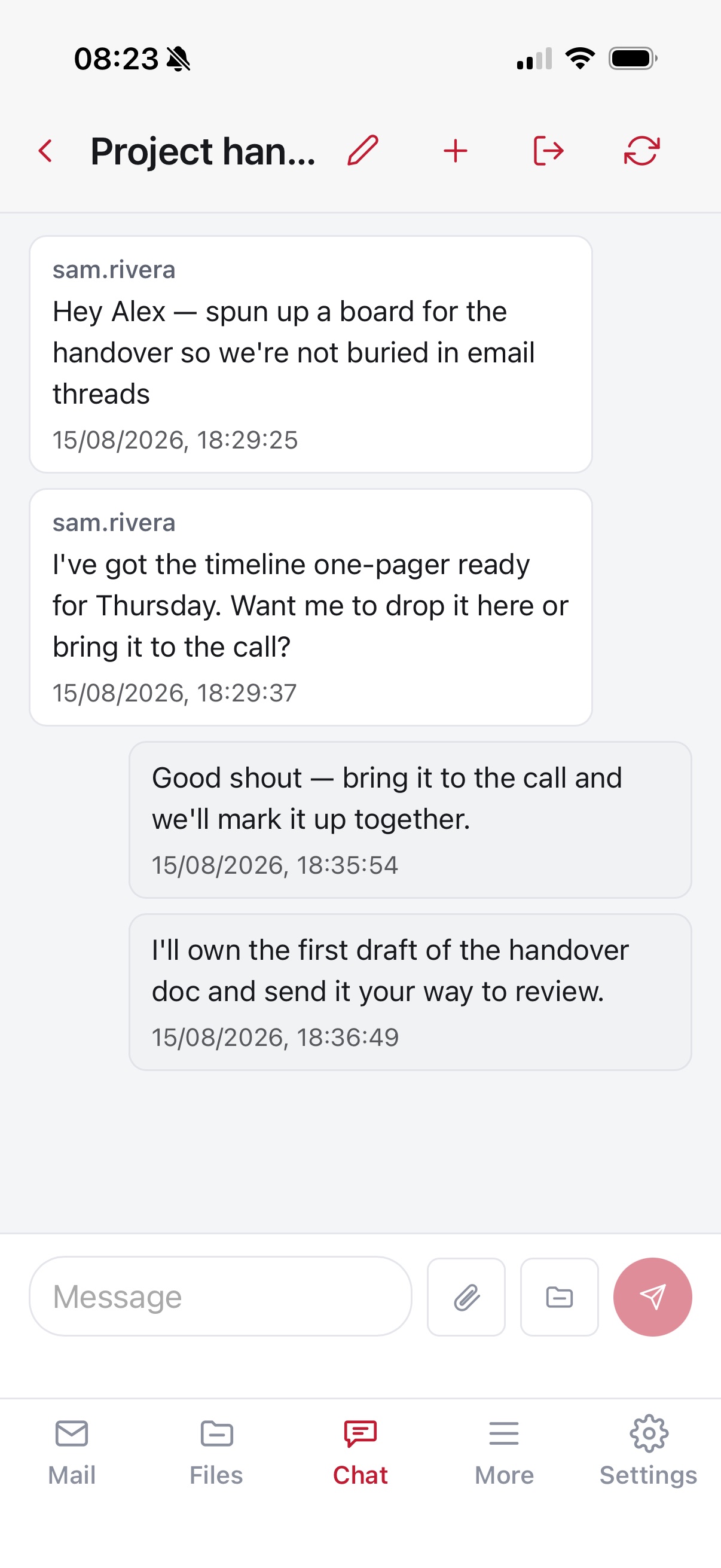
C-Board is chat between Confidesk users. Every message is sealed separately for each person in the conversation — no shared key, nothing readable on our side, and nothing that ever appears in your mailbox or Sent folder. Start a one-to-one chat with a contact, or a named group.

  • Groups without shared secrets — someone added later sees only what's sent after they join.
  • Files work like everywhere else — attach from your device or from Files, open received files in the safe viewer, forward messages between chats.
  • Read receipts, honestly — a tick turns red once everyone has read your message. Same for everyone.
  • You control your copies — deleting a chat removes yours only; unknown senders can be blocked within 24 hours.
C-Board — Project handover
C-Board chat view: a chat list on the left and a conversation with verified messages and read ticks on the right
Files & storage

Encrypted storage with a viewer that never touches your disk.

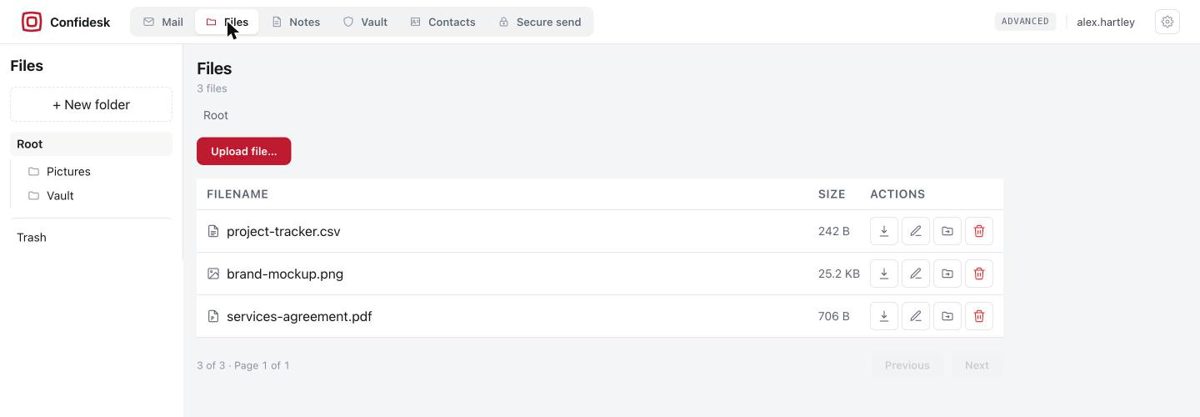
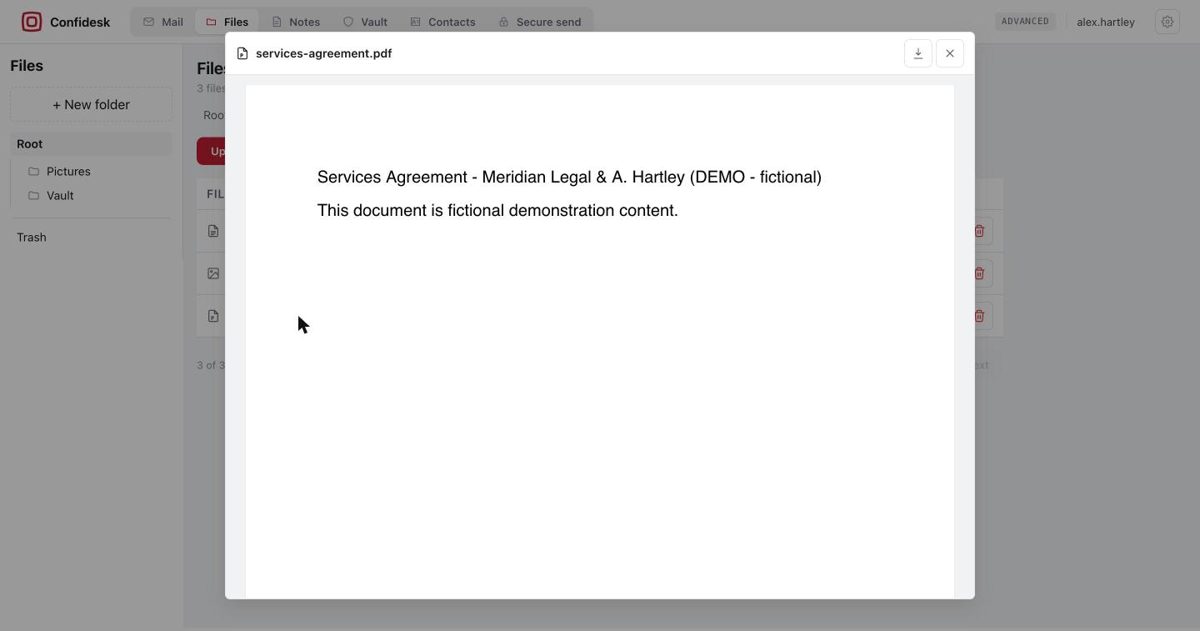
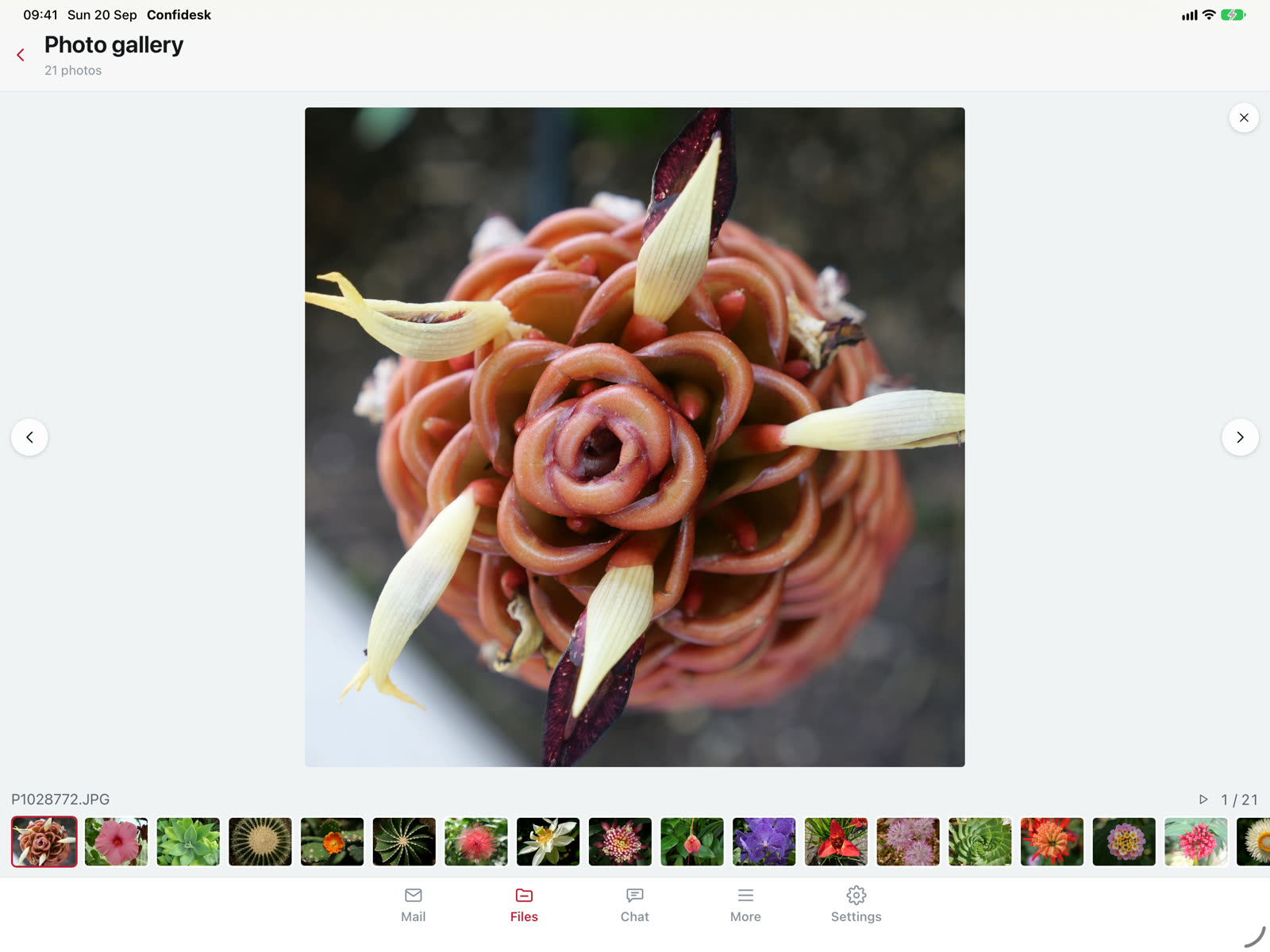
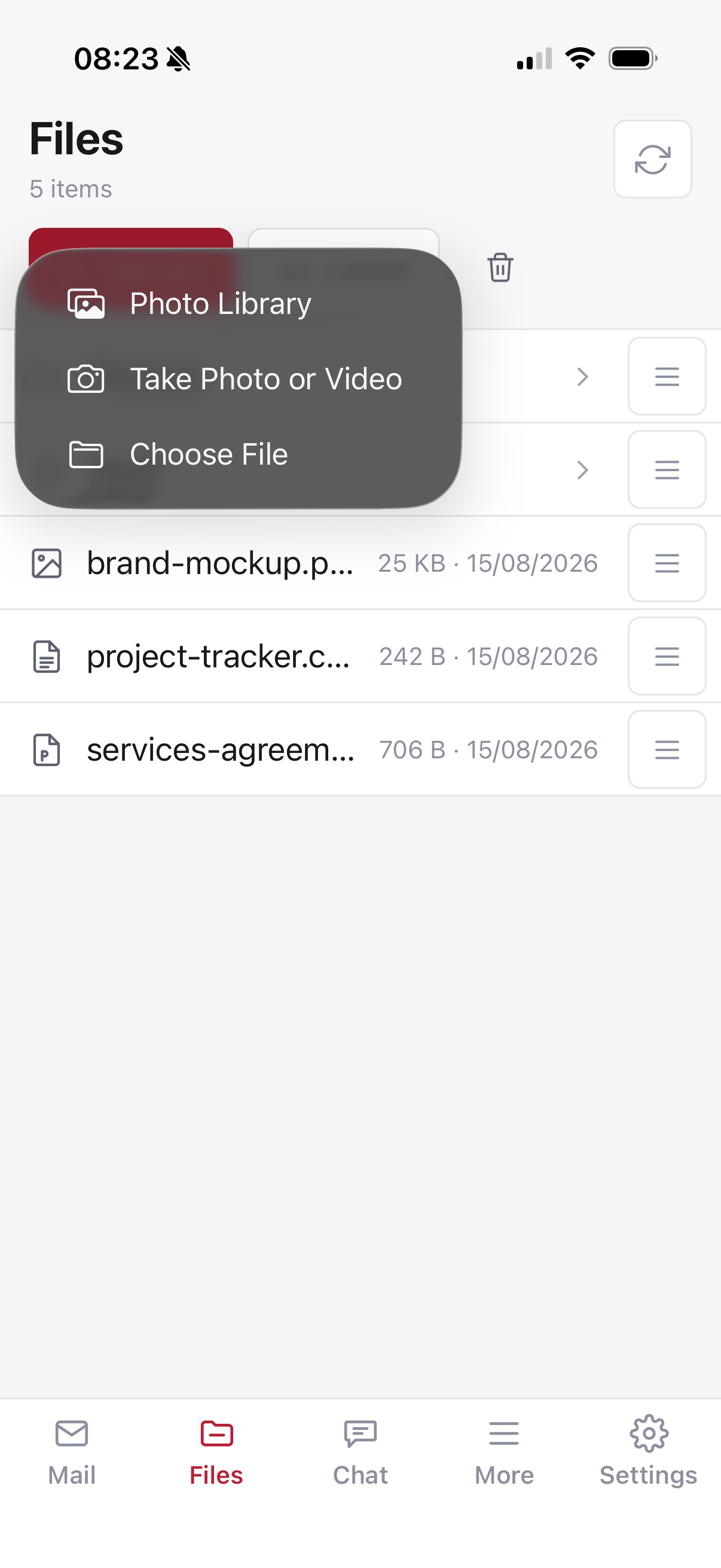
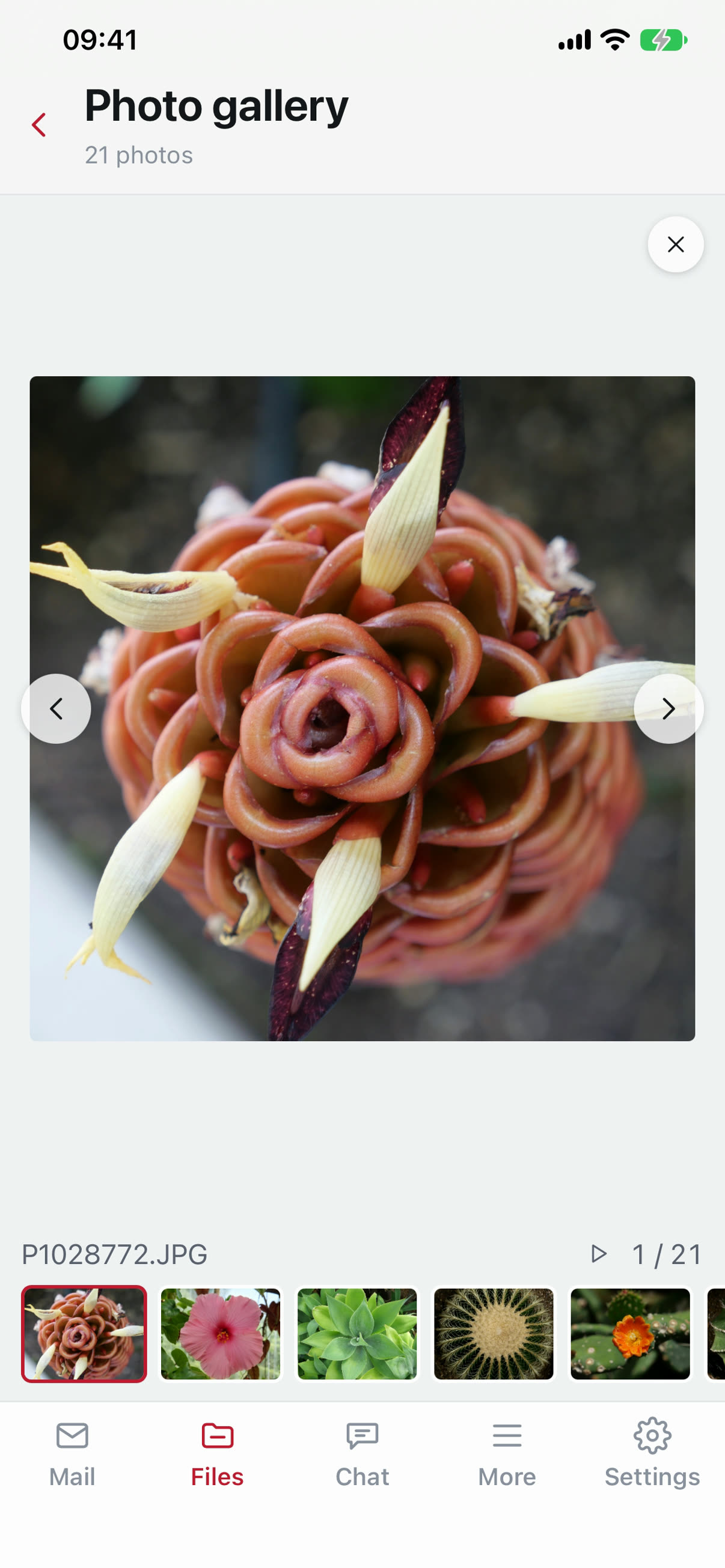
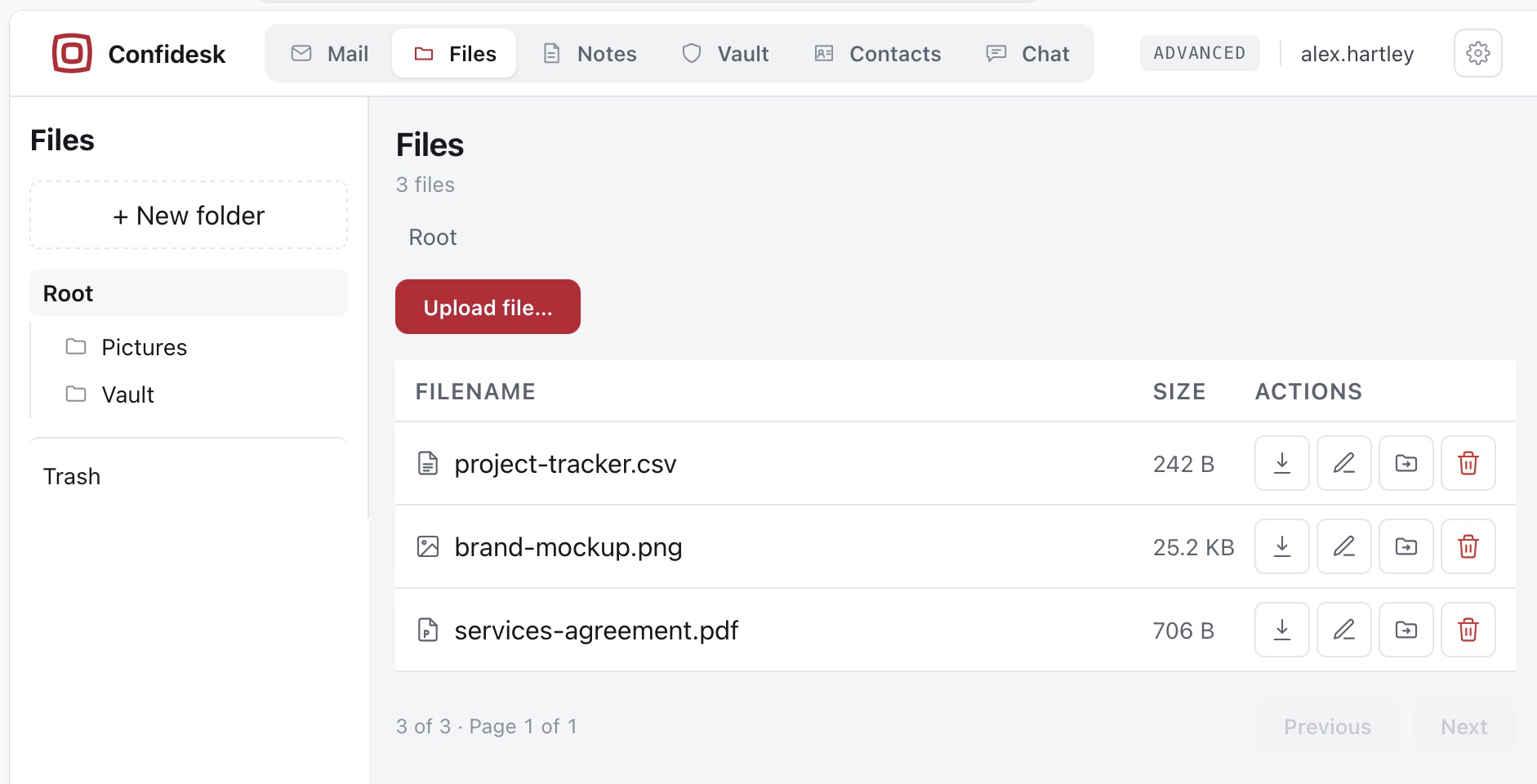
Upload anything. Files are encrypted on your device before they leave it and decrypted only when you open them, in your browser. Organise them into folders, rename, move, download — and preview most things in place: text and code, images, PDFs, audio, video, spreadsheets and Word documents.

  • Safe preview — documents are cleaned and shown in a sealed, no-network frame, so a booby-trapped file can't run code, load a tracker or reach your key.
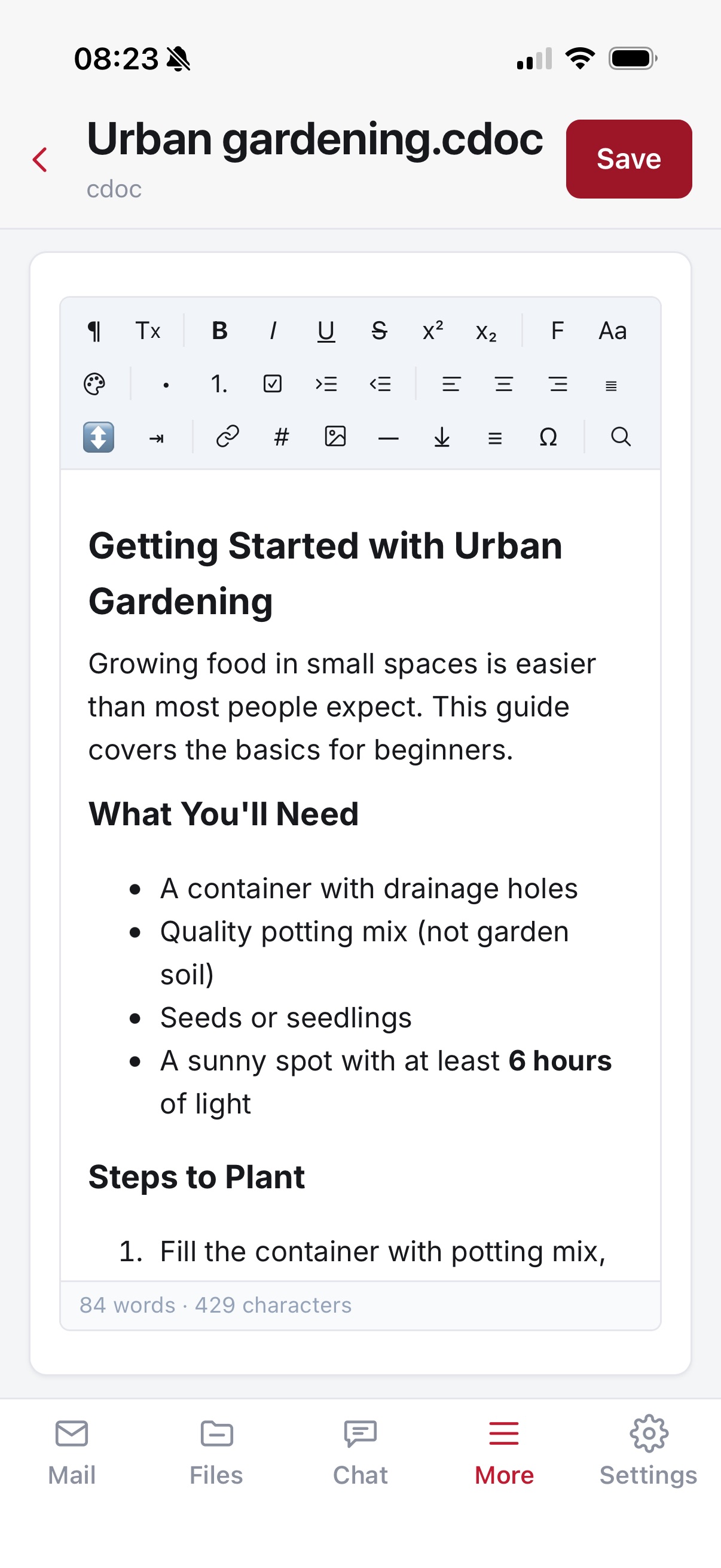
  • Edit in place.md, .txt and .rtf files carry a pencil icon and open in the built-in editor.
  • Trash with restore — deleted files wait in Trash until you restore them or delete forever.
Files
Confidesk Files list with folders on the left and download, rename, move and delete actions per file
Preview — services-agreement.pdf
A PDF opened in Confidesk's in-app preview, decrypted in memory
Notes Pro & Advanced

Encrypted notes in Markdown, plain text or rich text.

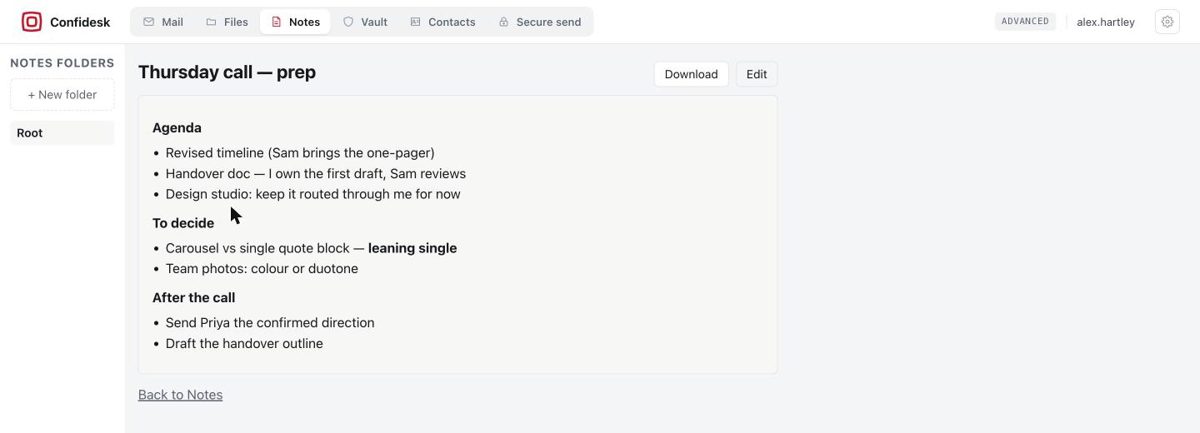
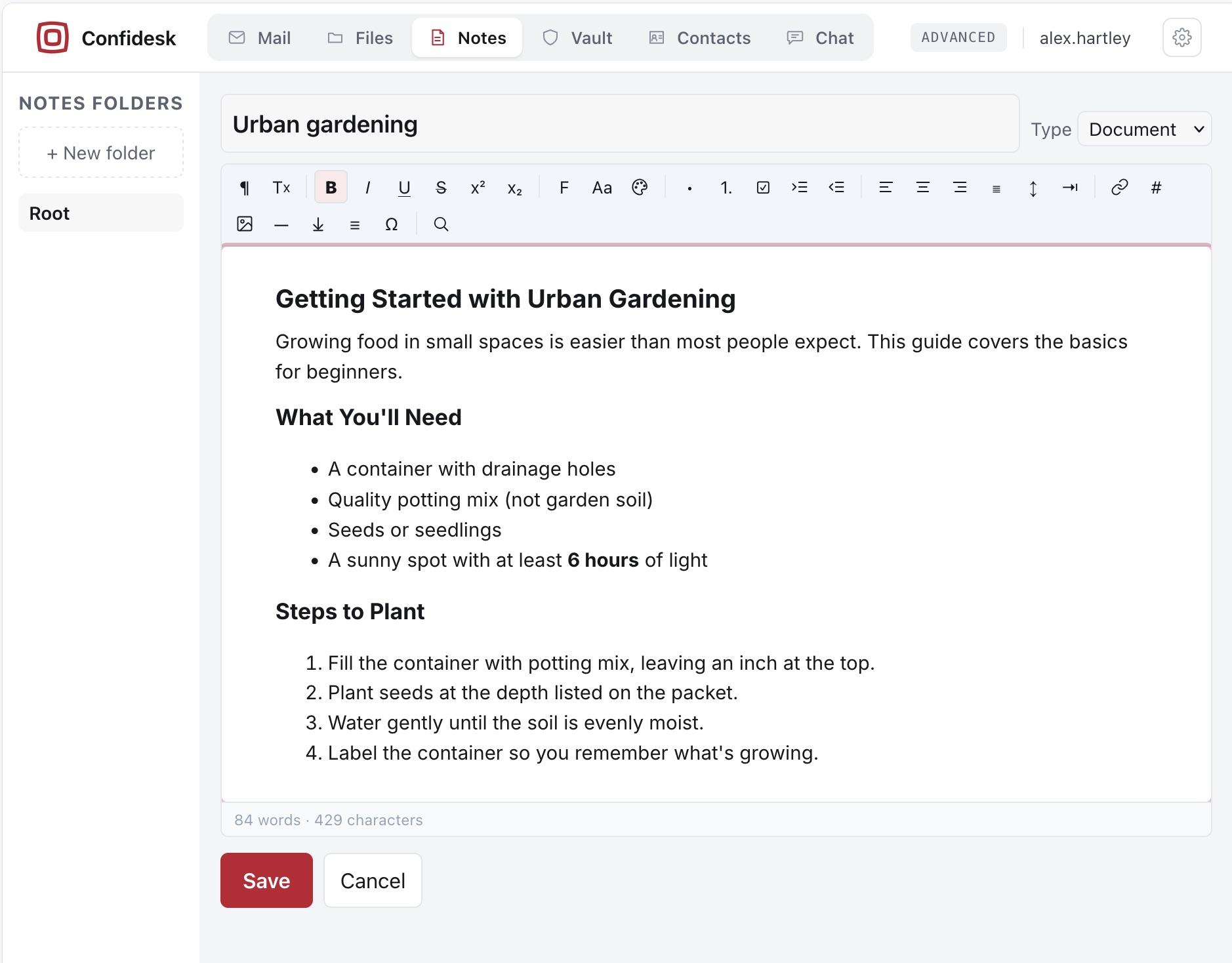
A simple home for the things you'd otherwise keep in a notes app you don't trust. Pick a type when you create a note: Markdown with a live preview, plain text, or a visual rich-text editor. Rich notes are stored as real .rtf files, so a download opens formatted in Word, Pages, TextEdit or LibreOffice — no Confidesk needed.

  • Folders, exactly like Files — and under the hood a note is stored like an encrypted file: the server can't even tell which files are notes.
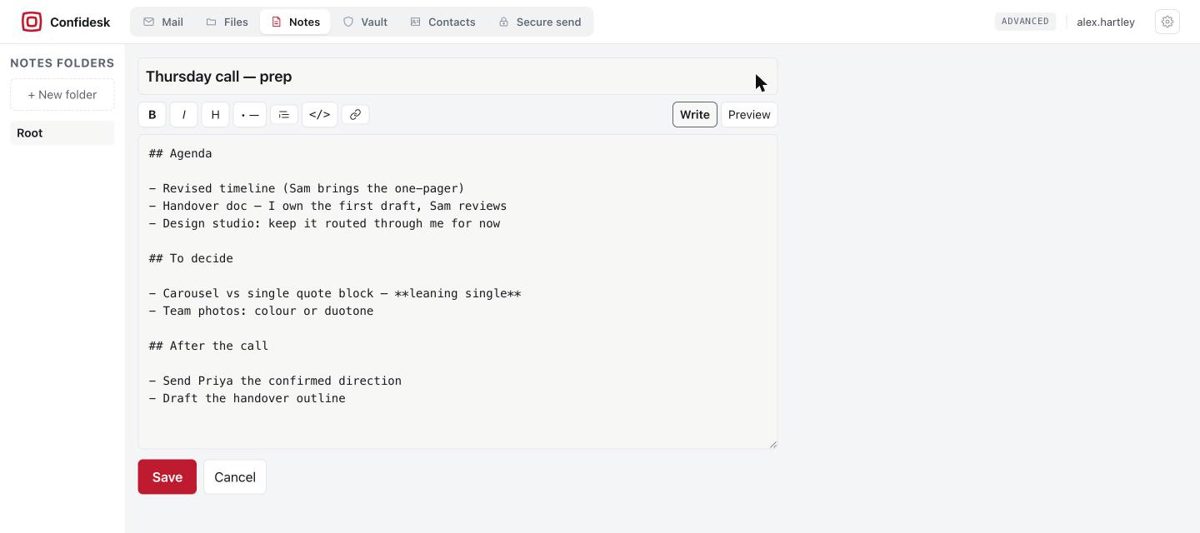
  • Write / Preview — a Markdown toolbar for bold, headings, lists, quotes, code and links.
  • Attach a note to a mail, a C-Board chat or a Secure send.
Notes — Thursday call — prep
A rendered Markdown note in Confidesk with headings and bullet lists, and Download and Edit buttons
Edit noteWrite · Preview
The Markdown editor for a note showing the formatting toolbar, Write/Preview toggle and Save button
Password vault

A password manager in the open KeePass format.

Your vault is a standard .kdbx file kept in your encrypted Files — protected twice, by its own master password (which we never see) and by your Confidesk key on top. Because it's the same format KeePassXC and friends use, your passwords are never locked in: the same file opens here or in any KeePass app.

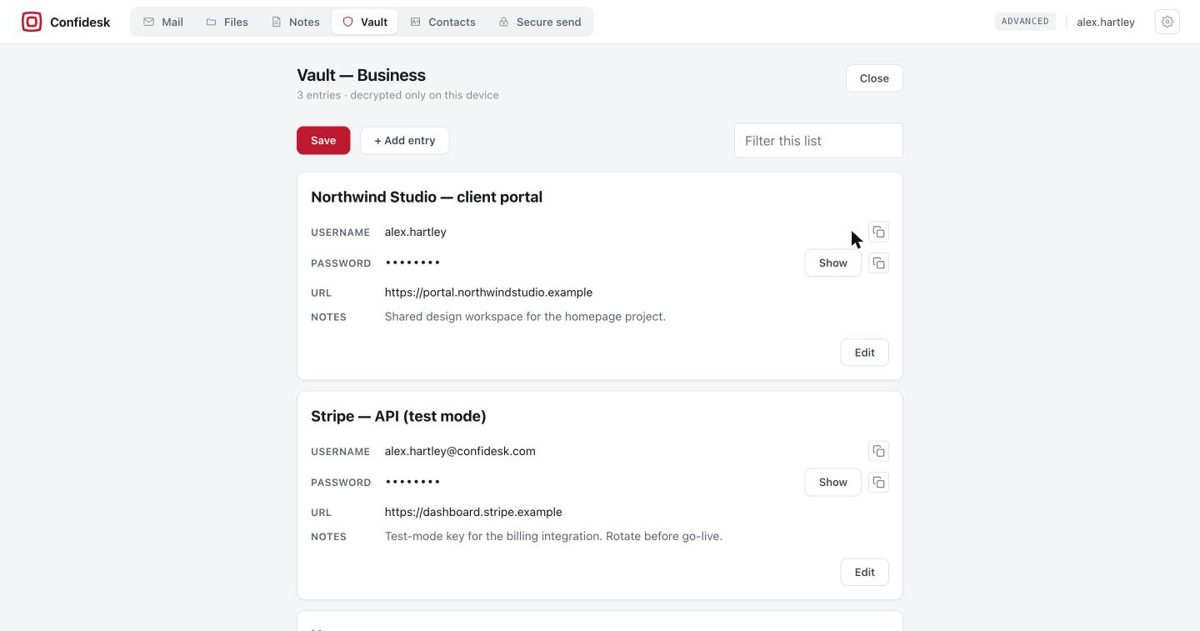
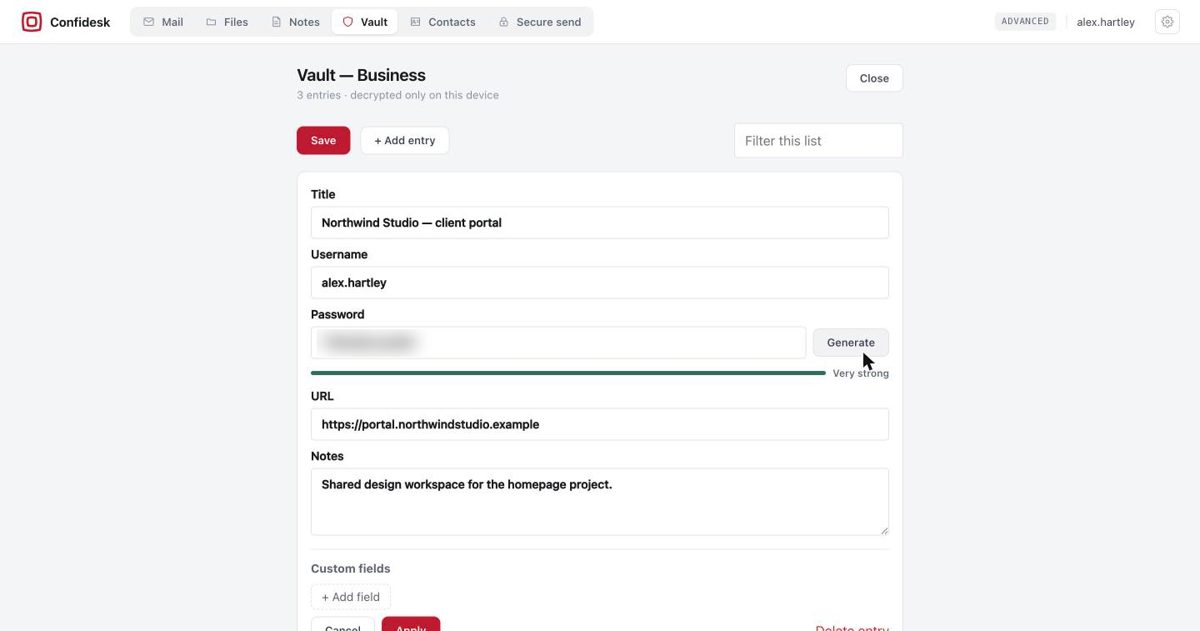
  • Entries with title, username, password, URL, notes and custom fields — add, edit, delete, then Save.
  • Password generator and strength meter, with an option to skip look-alike characters.
  • Copy buttons that clear your clipboard automatically after about 30 seconds; filter across entries.
  • Auto-lock — after a few idle minutes, or when you switch away, the vault locks and drops everything from memory.

Open and edit vaults on the web; create new ones in the desktop app or any KeePass tool.

Vault — Business.kdbxlocked
The locked vault screen asking for the master password, with the note that entries are decrypted only on this device
Vault — Business3 entries · decrypted only on this device
An unlocked vault listing entries with username, masked password, URL and notes, plus Show and Copy buttons
Edit entryGenerate · Very strong
Editing a vault entry: title, username, generated password with strength meter, URL, notes and custom fields
Secure send

Send something sensitive to someone who isn't on Confidesk.

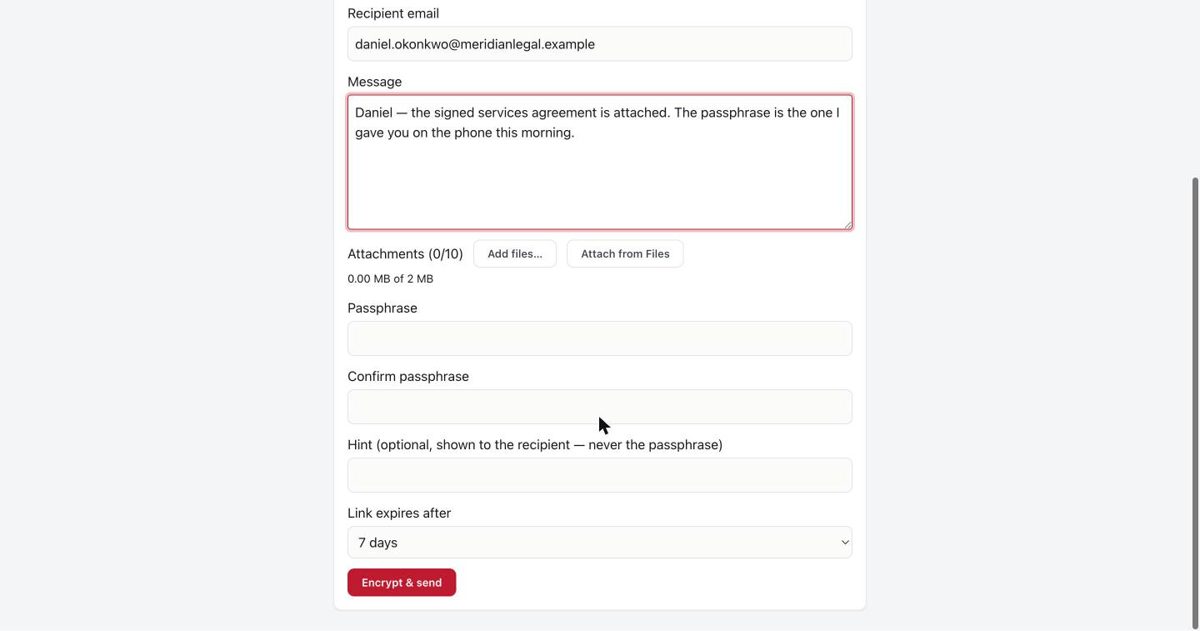
A contract, a password, a private note. Write the message, attach files, choose a passphrase — everything is encrypted in your browser before it leaves. The recipient gets an email with a one-time link, types the passphrase you gave them separately, and reads it in their browser. No account, no software.

  • Read once, then destroyed — and it expires after a time you pick, from a day up to a month, opened or not.
  • You share the passphrase in person, by phone or text. We never see it, so we can never read or recover the message.
  • Optional hint shown to the recipient; too many wrong guesses and the message locks itself.
Secure sendthe link opens once
The Secure send form with recipient email, message and attachment options
Passphrase, hint and expiry
Secure send passphrase, confirmation, optional hint and link expiry fields with the Encrypt & send button
Public contact form

Let anyone write to you encrypted — even without an account.

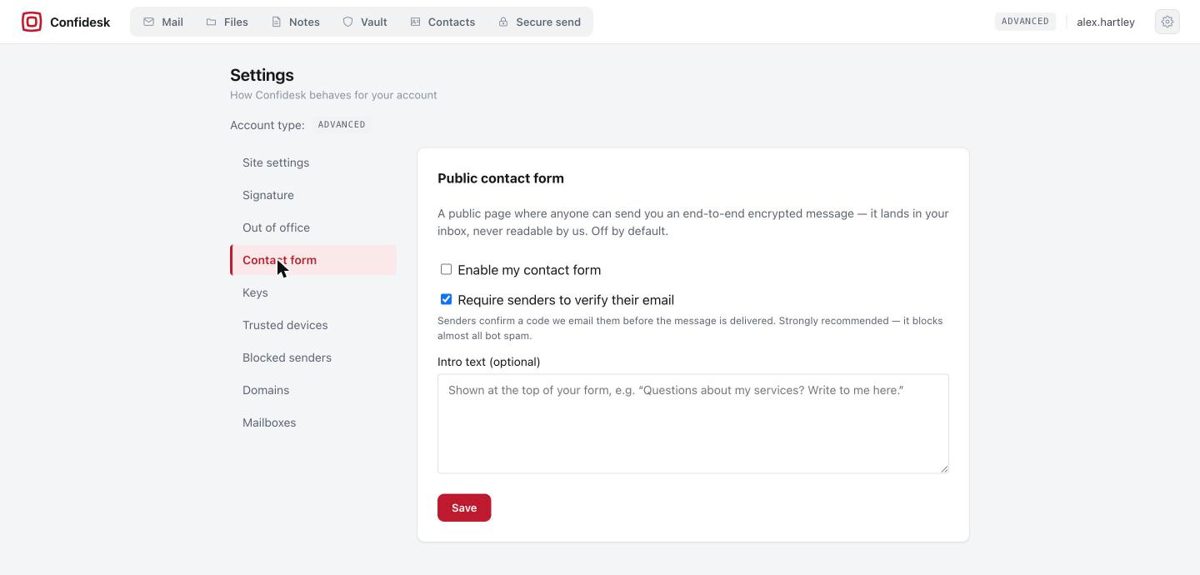
Turn on your contact form and you get a permanent link for your website, your social profiles, your email signature. Whoever uses it writes in their browser; the message is encrypted to your key right there and lands in your inbox marked "Via form". It never travels as ordinary email, and nobody but you can read it.

  • Spam protection built in — senders confirm their email with a short code before delivery, plus an anti-bot check and rate limiting.
  • Your intro text at the top of the form; switch it off any time.
  • The incoming companion to Secure send — one lets people write to you, the other lets you send out.
Settings — Contact form
Settings page for the public contact form: enable toggle, require sender verification, and intro text
Contacts & keys

Your address book, your keys, your export.

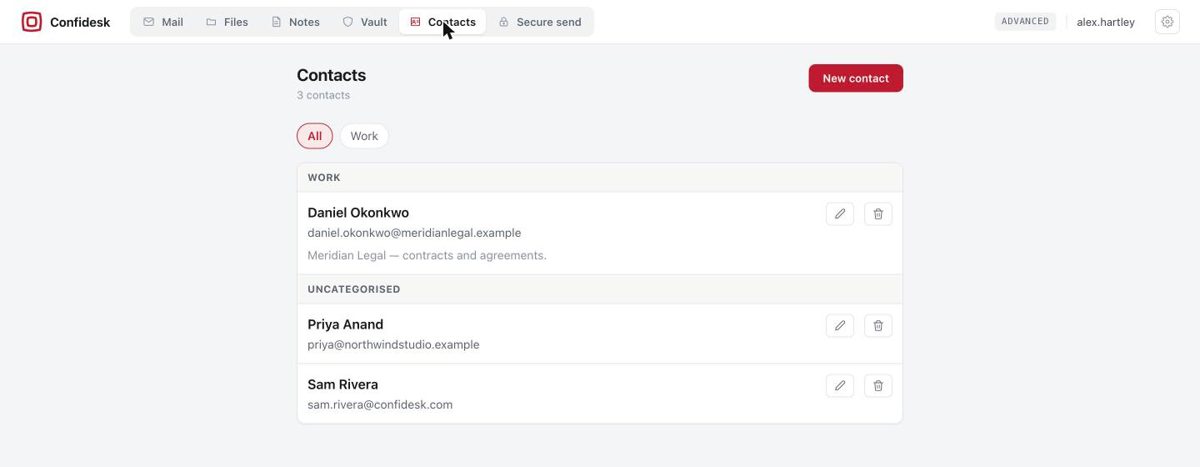
Contacts hold names, addresses, groups and — for people who use PGP — their public key, so mail to them is encrypted end to end and their signatures are verified on arrival. Your own keypair is generated in your browser at registration (Curve25519), or you bring your own; you can download it at any time and use it in standard GPG tools, independent of Confidesk.

  • Bring your own key — upload an existing v4 Curve25519 keypair at registration and keep your PGP identity.
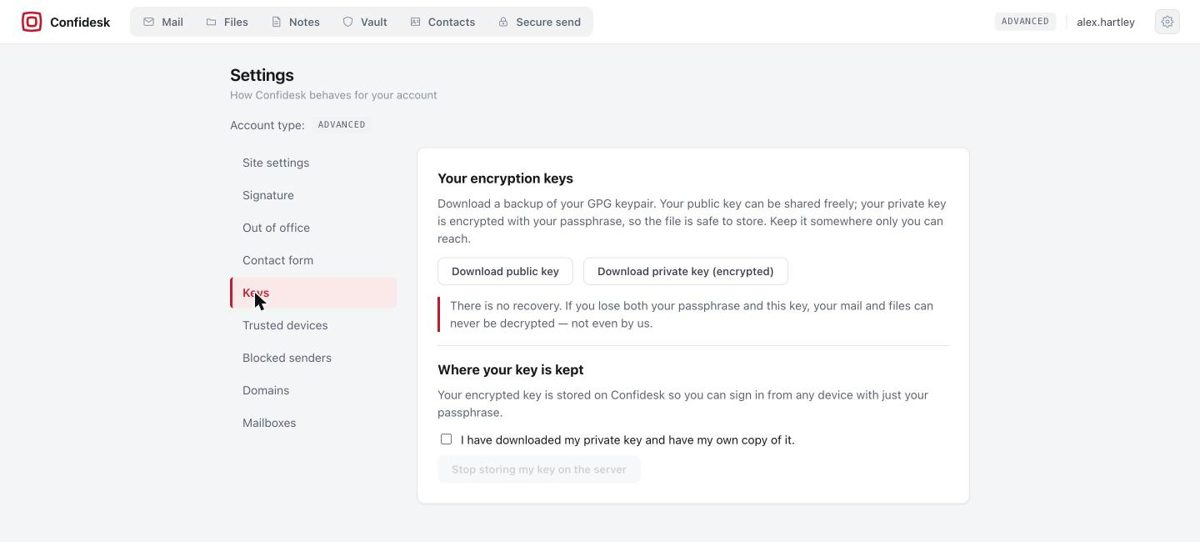
  • Download public / private key from Settings → Keys; your private key is exported encrypted with your passphrase.
  • Stop storing your key on the server if you'd rather hold the only copy yourself.
Contacts
Confidesk Contacts list grouped by category with edit and delete actions
Settings — Keys
Settings Keys page with Download public key and Download private key (encrypted) buttons and the no-recovery warning
You stay in control

Trusted devices, blocked senders, and settings that respect the rule.

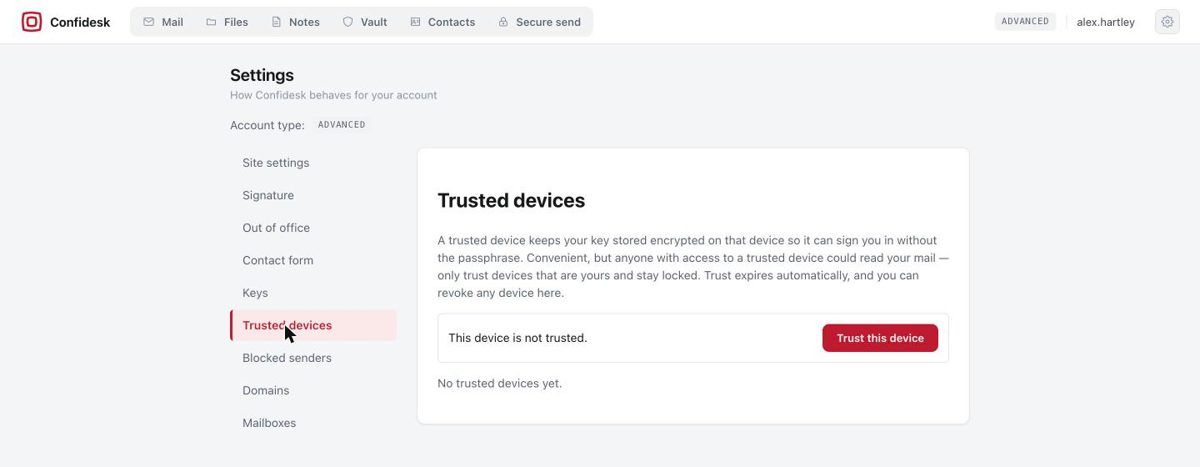
Because your key only ever lives in your browser's memory, Confidesk asks for your passphrase again after a reload. On a device that's yours and stays locked, mark it trusted and it signs you straight in — trust expires automatically after about a month, and you can revoke any device from Settings.

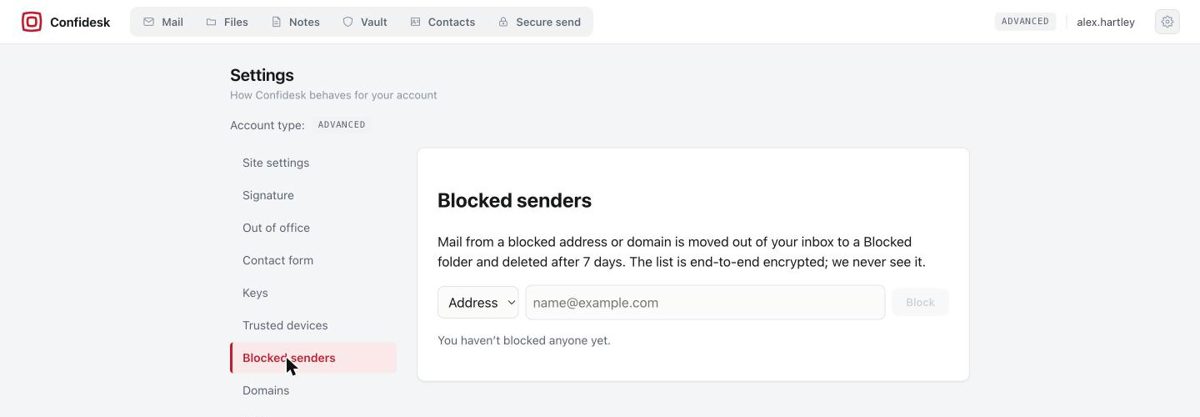
  • Blocked senders — block an address or a whole domain; blocked mail goes to a Blocked folder and is deleted after 7 days. The list itself is end-to-end encrypted.
  • Site settings Pro & Advanced — items per page, session timeout, remote images, rich-text by default, formatted mail by default, and more.
  • Signature and out-of-office auto-replies Pro & Advanced; authenticator-app sign-in and a sign-in activity log under Account → Security.
Settings — Trusted devices
Trusted devices settings page explaining the trade-off, with a Trust this device button
Settings — Blocked senders
Blocked senders settings page with an address/domain selector and Block button
Advanced Advanced plan

Your own domain, several mailboxes, one key.

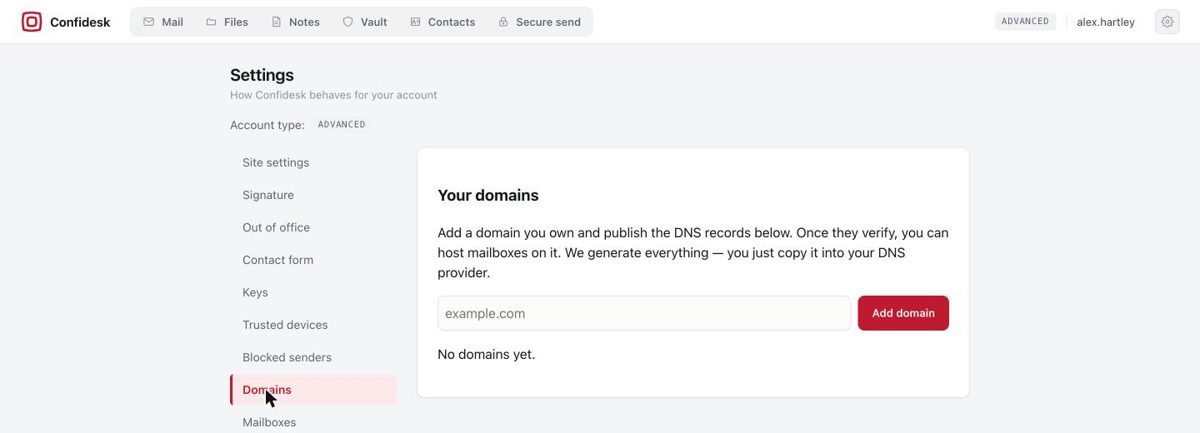
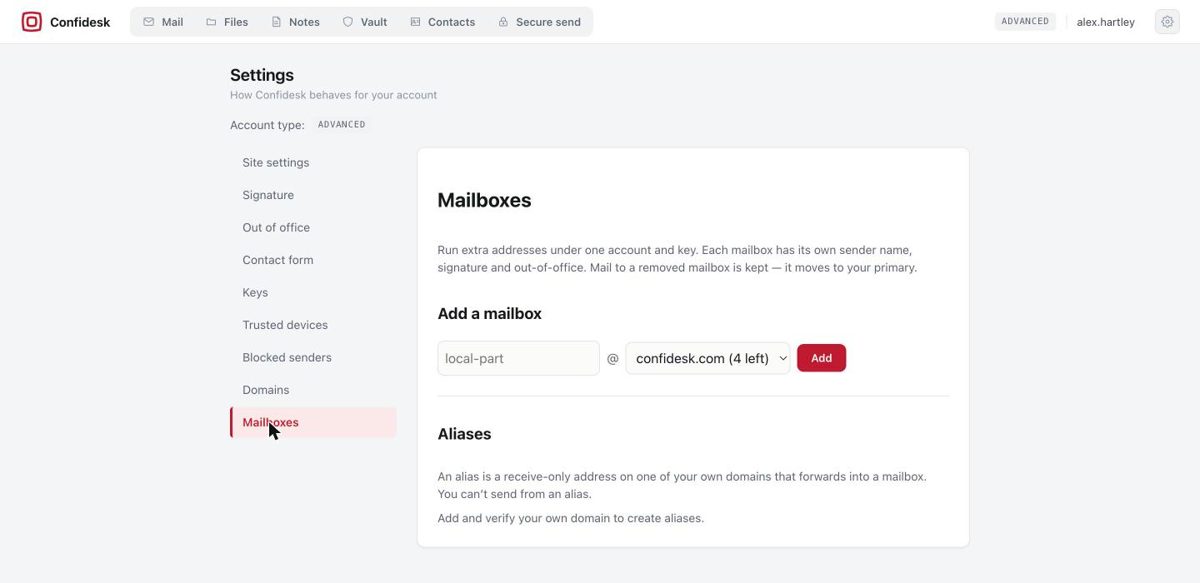
Run mail at you@yourcompany.com under the same account and encryption. Add a domain, publish the DNS records we generate for you — MX, SPF, DKIM and a verification record — and watch each one turn green. Once active, create mailboxes on it.

  • Up to 5 mailboxes per domain, each with its own sender name, signature and out-of-office — every one can send and receive.
  • Up to 10 aliases per domain — receive-only addresses on your own domain that land in a mailbox of your choice.
  • Up to 3 domains, with a "Check now" button if you don't want to wait for the daily DNS check.
Settings — Domains
Settings Domains page with an Add domain field and explanation of DNS records
Settings — Mailboxes & aliases
Settings Mailboxes page with Add a mailbox form and Aliases section
Confidesk for desktop Pro & Advanced

The same encryption, plus the things a browser can't do.

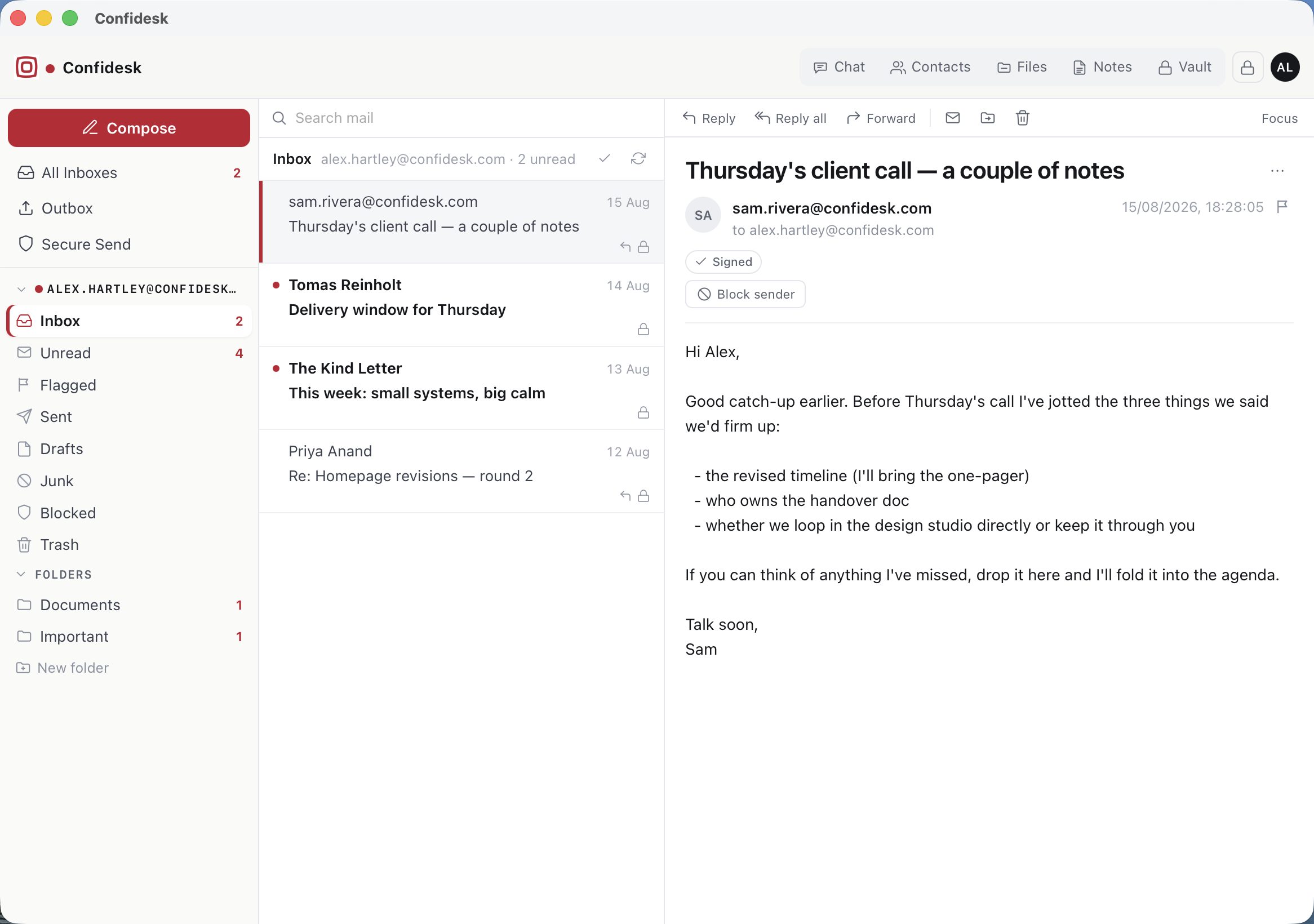
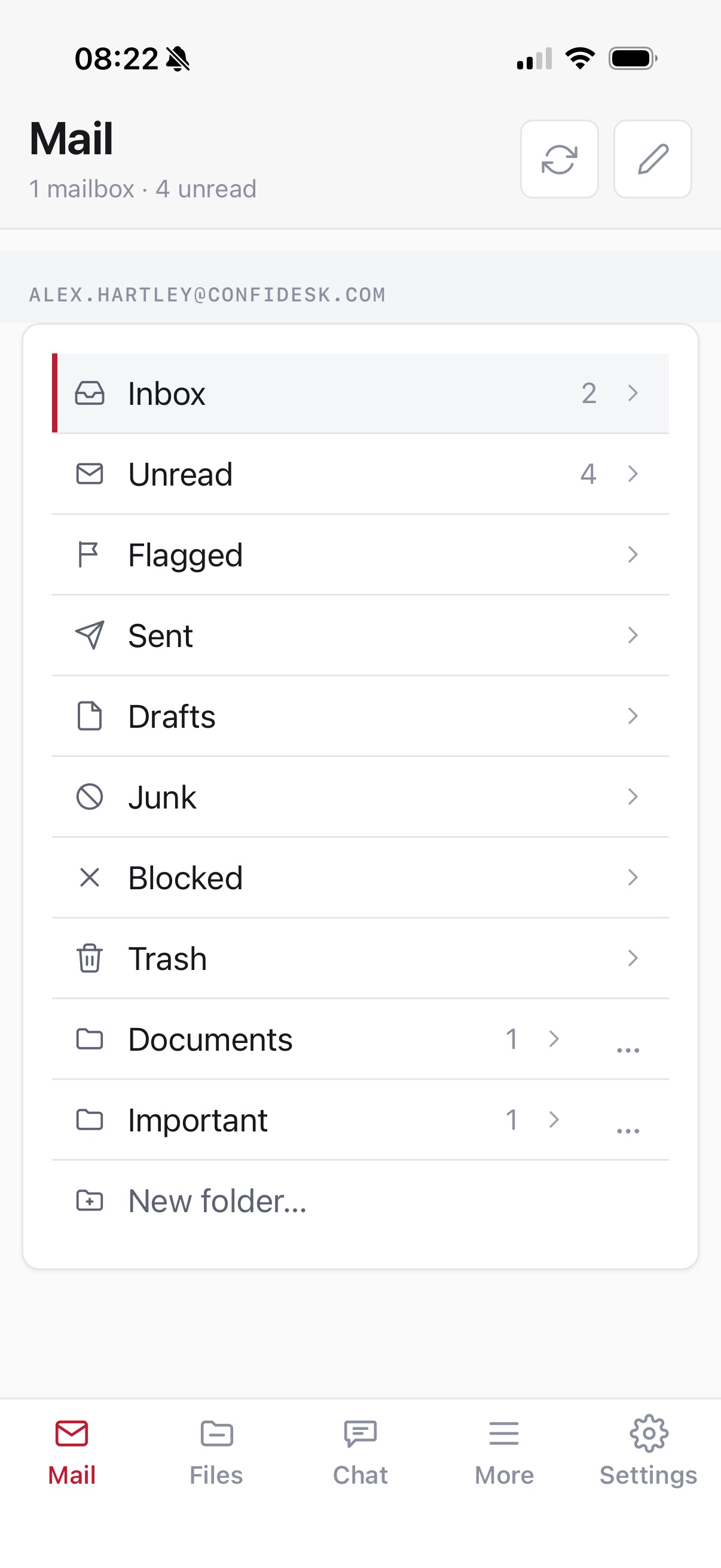
Sign in the same way and see the same mail, files, contacts and vaults. Your key is unlocked only inside the app, in your computer's memory — never written to disk, never sent to us. Available now for Apple Silicon Macs and Linux; Windows is coming.

Mail that works offline

An encrypted copy of your mailbox lives on your computer. Read, reply and delete without a connection — it syncs the moment you're back online.

Search — where it's safe

The web app has no search, because an index would mean a decrypted copy on a borrowed machine. The desktop app already holds your mail encrypted locally, so it searches instantly.

Bring in your other mailboxes

Add Gmail, Outlook or any IMAP/POP account and read it beside your Confidesk mail — with full PGP support for signing, encrypting and verifying.

Create password vaults

A dedicated Vault section lets you create new KeePass vaults by name. They appear in your Files and open on the web too.

Auto-lock

Have the app lock itself after a period of inactivity — from "as soon as I close it" to a day — or lock it on the spot. Locking wipes your key from memory.

Quick return

Signing out keeps the local encrypted store, so signing back in is just your passphrase. "Remove this account from this device" wipes it completely.

Download for Mac Learn more
Built on one rule

A few familiar features are missing. On purpose.

Only you can read your data. Anything that would need a machine other than yours to read your mail is something Confidesk deliberately won't do.

You won't findBecauseInstead
Password reset or recoveryRecovery means someone other than you can open your data. If a service can recover it, so can whoever leans on the service.Keep your passphrase safe; download your keypair backup from Settings → Keys.
Automatic forwardingOur servers would have to read each message to send it on — and they can't.Forward yourself, from your browser, where it's decrypted only for you.
Filters and rules"If from X, move to Y" needs readable content on the server. It has none.Folders, flags, the Junk filter and your own encrypted block list.
Search in the web appAn index in a browser is a decrypted copy left on the machine — including a shared one.Search in the desktop app, where your mail is already stored encrypted on your own computer.
Shared or team mailboxesSharing a mailbox means sharing a key. Yours never leaves your device.C-Board group chats, and Advanced accounts with several mailboxes under one key.

How Confidesk is different →

Which features on which plan

Start free. Grow when you need to.

Every plan gets the same encryption. Higher plans add storage, features and identities — never a different privacy model.

Trial

Free · limited time
  • Mail & keys
  • Try the encryption

Free

One-time confirmation fee · permanent
  • Mail, Files, Vault, Contacts
  • Contact form & Secure send
  • C-Board chats
  • 100 MB storage

Pro Most popular

Monthly subscription
  • Everything in Free
  • Notes, signature, out-of-office
  • Blocked senders & site settings
  • Desktop app with search
  • 2 GB, expandable in 1 GB steps

Advanced

Monthly subscription
  • Everything in Pro
  • Up to 5 mailboxes
  • Own domains & aliases
  • 2 GB, expandable

Prices and billing options are on the pricing section. Full details of every feature are in the user guide.

Take back your privacy.

Create your encrypted mailbox in minutes. Your mail, files, notes, passwords and chats — readable only by you, starting today.